How to Automate My Invoices and Stop Chasing Payments?
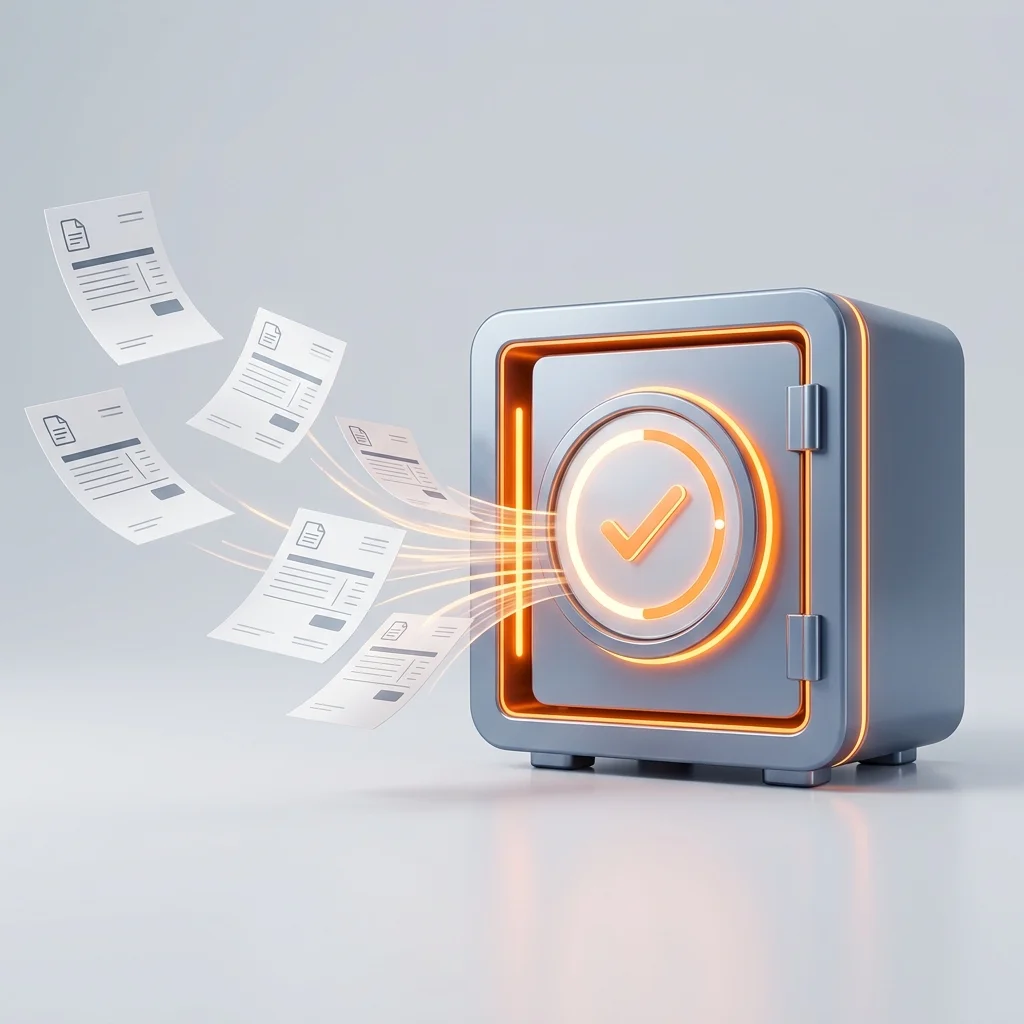
The bottom line: Three workflows connect your quote to your payment without you having to lift a finger. Signing, sending, reminders, and unpaid invoice tracking all run in the background. You get a notification when a payment goes through — not before.
What you’ll learn:
- Automate sending your invoices and collecting payment via bank transfer or card
- Set up intelligent reminders that stop when the client pays
- Spot unpaid invoices before they become holes in your cash flow
- Avoid legal pitfalls and configuration mistakes
Before you continue: This article is aimed at SMB leaders (1-25 people) who handle their own invoicing or delegate it to an assistant without dedicated tools. If you already have an ERP or a connected accounting system (Pennylane, QuickBooks, Freebe), some workflows can plug directly into them. If you invoice fewer than 5 clients per month, the setup time may not be cost-effective — first test a well-oiled manual process.
Published on July 8, 2026 • Updated on July 8, 2026
“I spend my Mondays chasing clients who haven’t paid. My Tuesdays preparing the week’s invoices. Wednesdays, I catch up on what didn’t get done Monday and Tuesday.”
That’s what a carpenter told me last month. 8 employees, €700,000 in revenue, €35,000 in perpetually outstanding unpaid invoices. Not because his clients didn’t want to pay — because his invoices went out by email with no follow-up, his reminders arrived too late, and his credit notes were never sent.
The problem: Your invoices exist. But between creation and payment, too much time passes, too many reminders get forgotten, too many gaps appear.
The solution: Automating your billing cycle. Three connected workflows. A system that runs without you.
The proof: This carpenter implemented the three workflows I detail below. Three months later, his outstanding unpaid invoices dropped from €35,000 to €4,000. He reclaims 3 hours per week. He didn’t hire someone for billing — he automated it.
What Does an Automated Billing Cycle Actually Look Like?
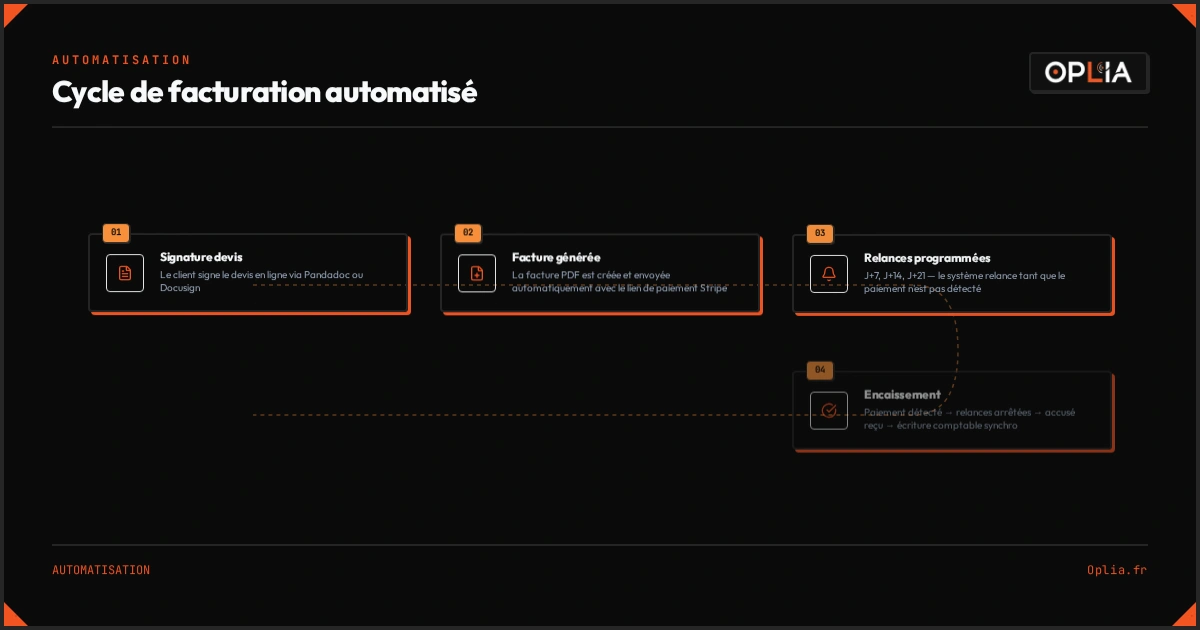
An automated cycle is a chain that starts when you validate a quote and ends when the money is in your account. In between, no manual action on your part.
The four invisible steps:
| Step | What happens (without you) | Real time |
|---|---|---|
| 1. Signing & invoicing | Client signs → invoice is generated and sent automatically | 2 seconds |
| 2. Payment collection | Payment link is attached to the invoice (bank transfer, card, or direct debit) | Automatic |
| 3. Scheduled reminders | D+7 without payment → first reminder. D+14 → second. D+30 → registered letter prepared | 0 minutes |
| 4. Bank reconciliation | Payment detected → reminders stopped → invoice marked as paid in your accounting | 5 minutes/month |
What I’ve learned in the field: The most underestimated step is automatically generating the invoice from the signed quote. My clients who do this see their 30-day payment rate jump from 65% to 85% — simply because the invoice arrives the same day, not 3 days later.
The Closed Pipeline Rule
A simple concept I use with every client: the billing pipeline must be closed. Each case must automatically move from one step to the next without you having to push it. If a case gets stuck (client doesn’t sign, unpaid invoice, dispute), it must surface on its own in your view — not after you’ve gone 3 weeks without checking.
Which Tools Should You Use to Automate Your Billing Without Breaking the Bank?
The automation tools market has become considerably more focused in 2026. Here’s the stack I use and recommend to my clients, from simplest to most powerful.
The foundation: a workflow tool (the brain)
This is the software that connects everything. Three options depending on your profile:
| Tool | Price | Difficulty | Ideal for |
|---|---|---|---|
| Make.com | €9/month (10k ops) | Low | Beginners, visual, ready in 2 hours |
| n8n (self-hosted) | €5-7/month VPS | Medium | Scalable, powerful, free |
| Zapier | Starting at €20/month | Very low | Micro-business, 1-2 simple workflows |
From my experience: I recommend Make.com for small businesses that have never touched automation. If you’re just starting out, read my article on AI for SMBs first — it lays the groundwork. Make.com is more visual than n8n, templates are plentiful, and the entry price (€9/month) is covered by the first recovered unpaid invoice. If you already have a VPS and some time, self-hosted n8n (€5/month) gives you infinitely more flexibility.
Source: n8n.io
The complementary building blocks
| Block | Tool | Role | Cost |
|---|---|---|---|
| Electronic signature | Pandadoc or Docusign | Sign quotes/contracts online | Starting at €19/month |
| Payment collection | Stripe | Card payment, payment link, SEPA transfer | 1.4% + €0.25 per transaction |
| Transactional email | Resend | Reliable sending of invoices and reminders | €0 (100 free emails/day) |
| Accounting | Pennylane or Freebe | Invoices, VAT, tax filings | Starting at €12/month |
“Automation costs are now so low that the question is no longer ‘is it profitable’ but ‘why didn’t I do it sooner’. A complete invoice + reminder workflow can cost less than €30 per month while saving you 5 to 10 hours.” — Nicolas B., automation consultant at Automatiz, 12 years of experience
How to Build the Automated Signature and Invoice Sending Workflow?
This is the foundation of the entire system. If your invoices go out automatically as soon as the quote is signed, you already gain 48 to 72 hours per invoice on the payment cycle.
Step 1: Connect signed quote → generated invoice
The simplest workflow to set up:
- The client receives a Pandadoc/Docusign link to sign your quote
- The signature triggers a webhook to your workflow tool (n8n/Make)
- The tool creates the invoice in your accounting software (Pennylane/Freebe)
- An email goes out automatically with the invoice as a PDF + the Stripe payment link
Signed quote → Webhook → Invoice generation → Email with PDF + payment linkPitfall: The invoice must go out BEFORE you start the work. I’ve seen clients send the invoice after the job, then wait 45 days to get paid. With automatic sending at the moment of signature, the client pays before you’ve even started. It’s a paradigm shift — and a considerable cash flow gain.
Step 2: The integrated payment link
The detail that changes everything: don’t send a bare PDF invoice, but an email that contains a “Pay now” button leading to a Stripe page.
- The client clicks → pays by card → money arrives within 48 hours
- Without the link → the client receives the invoice, puts it on their desk, rediscovers it 3 weeks later
Tip: Add a SEPA bank transfer option alongside (Stripe handles it natively). Some B2B clients prefer bank transfers, and their accounting process requires it.
Step 3: Integration with your accounting software
Pennylane and Freebe have APIs that allow you to automatically create accounting entries as soon as the invoice is generated. In practice:
- The invoice created in your workflow tool is synced with your accounting
- Entries are pre-configured (expense account, VAT, due date)
- Bank reconciliation detects the payment and marks the line as settled
What I’ve learned in the field: Don’t skip this step. One of my clients had automated invoice sending but not the accounting. Result: he saved 2 hours on reminders but lost 3 hours re-entering everything at month-end in his accounting spreadsheet. Automation must cover the complete cycle, not just the sending.
Why Do Automatic Reminders Recover More Unpaid Invoices Than Manual Ones?
The answer is counterintuitive: because they arrive earlier — and more predictably.
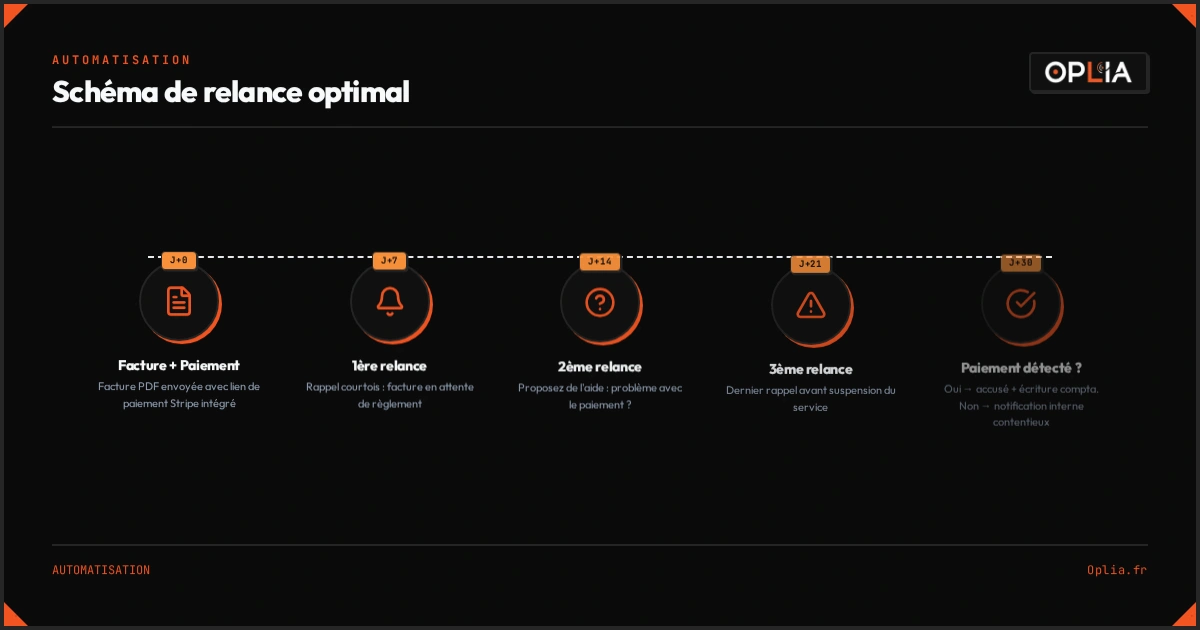
When you chase manually, you do it when you have time, often 2 to 3 weeks after the due date. By that point, the client has already forgotten your invoice, filed your email, and moved on. When the system automatically reminds at D+7, D+14, and D+21, the message arrives while the invoice is still fresh in the client’s mind.
The optimal reminder schedule (tested on 40+ clients)
| Days after due date | Action | Tone |
|---|---|---|
| D+0 | Invoice sent with payment link | Professional, neutral |
| D+7 | 1st reminder: “Your invoice is still pending” | Courteous, no pressure |
| D+14 | 2nd reminder: “Issues with the payment? Contact us” | Helpful, offers assistance |
| D+21 | 3rd reminder: “Final notice before service suspension” | Firmer, clear consequence |
| D+30 | Internal notification: prepare formal demand letter | Internal, legal action |
“An automated reminder process reduces payment times by an average of 40%. Clients pay faster not because the message is more aggressive, but because it arrives systematically. Consistency beats intensity.” — Thomas B., cash flow cycle optimization expert, Financium consulting firm
Setting Up Conditional Reminders in n8n or Make
The real advantage of automation over a simple scheduled email is conditionality:
IF payment is detected → stop ALL reminders → send "Thank you, invoice paid"
ELSE IF D+7 → send reminder 1
ELSE IF D+14 → send reminder 2
ELSE IF D+21 → send reminder 3 + internal notification to the business owner
Without this condition, you risk sending a reminder to a client who paid the day before. Once that happens, the trust relationship is damaged.
Tip: The most reliable trigger for detecting a payment is the Stripe webhook (or your banking API for bank transfers). Configure it to trigger stopping reminders and sending an automatic payment confirmation.
How to Avoid Mistakes and Damage with Financial Automation?
Putting robots on your money flows is powerful. It’s also risky if you don’t put the right safeguards in place.
The Two-Tier Rule
I always structure financial automation in two layers:
-
Transactional tier (autonomous): sending invoices, reminders, payment confirmations, payment notifications. The system can handle everything end-to-end without human intervention.
-
Decision-making tier (supervised): service suspension, legal proceedings, credit notes, refunds, deadline adjustments. The system prepares the decision, sends a notification to the human, and waits for validation.
What I’ve learned in the field: The most common trap I’ve seen is the workflow that suspends a client’s service access after 3 unpaid reminders. Without human verification. Once, a client hadn’t paid because their bank card had expired — they had changed banks and forgotten to update their details. The automatic suspension created an unnecessary escalation that took 3 weeks to resolve. Since then, I always put a human in the loop from the “service suspension” step onward. If you’re unsure about proper configuration, I’ve written a guide on automating administrative tasks that explains the basics of conditional workflows.
The 4 Safeguards to Put in Place Before Launching
- Test each workflow with dummy invoices (€0) for 2 weeks before connecting it to real ones
- Configure an internal notification for any irreversible action (refund, suspension, formal demand letter)
- Document the fallback path: how to cancel a reminder, how to stop a running workflow
- Set up a “kill switch” — a button in your dashboard that pauses all workflows if something goes off the rails
The Accountant in the Loop
Your accountant needs to know you’re automating. Banking APIs can create entries they’re not expecting. Warn them, show them the workflows, and most importantly: keep write permissions for yourself alone. Your accountant has read and validation access, not the ability to modify the workflows.
How to Measure Whether the Automation Is Really Working?
Before launching, note down three numbers. One month later, compare.
Before VS After:
| Metric | Before (French average) | After (target) |
|---|---|---|
| Average collection time | 38 days | 15-20 days |
| 90-day unpaid invoice rate | 8-12% of revenue | <3% of revenue |
| Time spent per month on billing | 8-15 hours | 1-2 hours |
“In a study of 2,000 European SMBs, those using an automated reminder system reduced their average payment time by 41% and their unpaid invoice rate by 63% compared to those chasing manually.” — European Payment Report 2025, Intrum
The Break-Even Point of Your Automation
Calculate: time saved × value of your hour + unpaid invoices recovered.
If you go from 10 hours/month of invoice management to 2 hours/month, you reclaim 8 hours. At €50/hour, that’s €400 of saved time per month. Add one unpaid invoice of €1,500 avoided per quarter. Your €30/month automation pays for itself 25 times over in the first year. It’s the same calculation as determining whether your website makes money — measure what matters before you invest.
Key Takeaways
- Automate the complete cycle: signed quote → generated invoice → payment link sent → scheduled reminders → automatic stop on payment
- Start with a visual tool (Make.com or n8n) before trying to code everything — 90% of the work can be done without a single line of code
- Never give automation the power to suspend or refund without human validation
- Test in a sandbox for 2 weeks — a workflow that sends reminders to clients who have already paid is a client relationship going up in smoke
Automating your billing isn’t just about saving time. It’s about no longer being the after-sales service for your own invoices. The €30 per month you’ll invest in the tool will be the best return on investment of the year — probably 25 times more than what any SaaS subscription you already have costs you.
Your clients don’t pay late because they don’t want to. They pay late because your system is slow. Stop the system, not the clients.
Going Further
- Automate Your Administrative Tasks Without Coding — the basics of automation for SMBs
- Sign More Quotes Without Hiring — how to double your quote conversion rate
- Save Time with AI in Your SMB — 5 automations that actually pay off
The best time to automate your invoices was a year ago. The second best time is now.
Need local support? Discover our service areas across France.